Appendix C: Flashing the WINC1500 Firmware
Introduction
Just as in MPLABX/Harmony applications, it is important for the firmware version on the WINC1500 and the driver version in software to be in sync. In Zephyr, the driver version used is based on version 19.5.2, so the WINC1500 firmware version should match.
While firmware can be updated from other platforms, this procedure is generally accomplished most easily from a MS Windows computer. Updating from macOS or Linux is subject to change and is outside the scope of this supplement. If you are on Mac/Linux, you will need access to a Windows machine for this step, or you may use the USB UART dongle approach described below.
Procedure
1. Download ASF standalone version 3.35.1, which includes WINC1500 Firmware version 19.5.2, from the link below:
https://ww1.microchip.com/downloads/Secure/en/DeviceDoc/asf-standalone-archive-3.35.1.54.zip
If other versions are needed, the full list of previous ASF versions is available for download here.
2. Unzip the download to a folder, then navigate to the following path within it:
asf-standalone-archive-3.35.1.54/xdk-asf-3.35.1/common/components/wifi/winc1500/firmware_update_project
3. Connect your WINC1500 module to EXT1 on a Supported Board, then connect your supported board to your host computer over the Debug USB port.
At the time of writing, supported boards are:
- SAMW25 XPRO
- SAM4S XPRO
- SAMD21 XPRO
- SAMG53 XPRO
- SAMG55 XPRO
- SAML21 XPRO
- SAML22 XPRO
- SAMR21 XPRO
A sample program can be created for other boards as well by following the guidance of an existing program. Alternatively, you can use a USB UART dongle connected to the Debug UART port on the WINC1500 XPlained Pro extension board or on your custom hardware. Check the Application Note in the doc/ folder entitled WINC_Devices_Integrated_Serial_Flash_Download_Procedure.pdf for more information regarding this process.
4. On a Windows machine, inside the firmware_update_project folder, run the .bat file that matches your chosen supported board and wait while the firmware is updated automatically. This process may take up to 2 minutes.
When complete, you will see a command window with the following output:
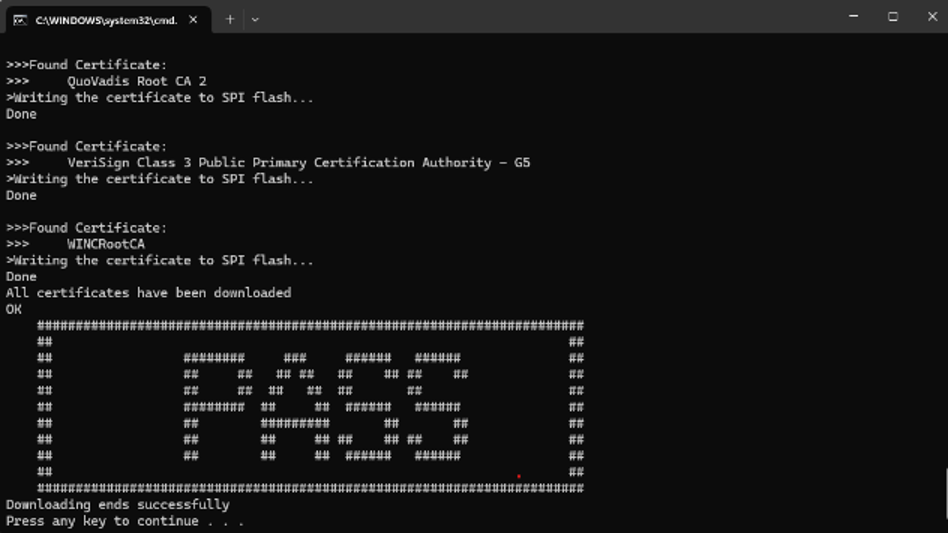
5. Scroll up within the command window output and verify that your firmware has been set to v19.5.2 as seen below:
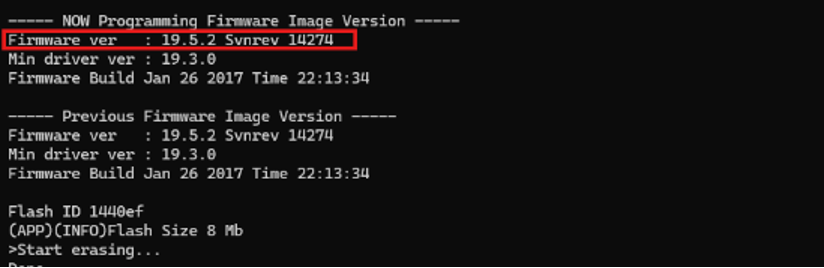
WINC1500 firmware update has now been completed, and you may continue with this lab manual.
You may need to restore your WINC1500 firmware version at a later time. To do so, simply follow these same steps using a different standalone ASF version from the download link in Step 1.